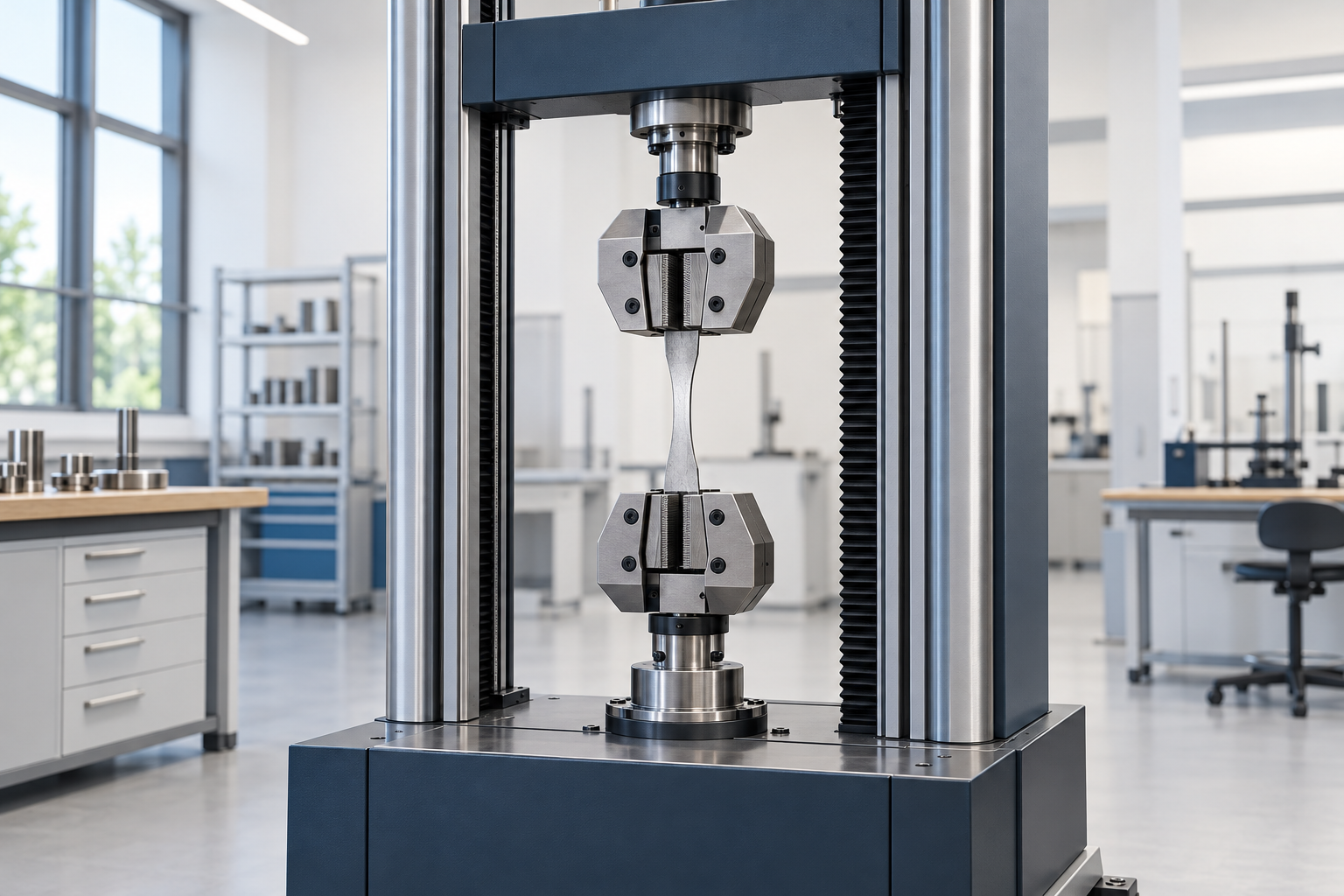
Tensile test
Tensile testing of different materials — derive the stress–strain curve from force–extension data and determine Young's modulus, yield point, tensile strength and elongation after fracture.
Tensile testing of different materials — derive the stress–strain curve from force–extension data and determine Young's modulus, yield point, tensile strength and elongation after fracture.
No experiments saved yet. Run in tab Experiment a tensile test and click on Save experiment.
| # | material | Data source i | Model | L0 / mm i | d0 / mm i | E / MPa i | ReH / Rp0.2 / MPa i | ReL / MPa i | Rm / MPa i | Ag / % i | A / % i | Date | Download | Delete |
|---|
Save at least one experiment to compare curves.
| Experiment | Source | E / GPa | ReH / Rp0.2 / MPa | ReL / MPa | Rm / MPa | Ag / % | A / % |
|---|
No experiments selected.
No charts saved yet. In the Comparison tab, create a chart and click Save diagram.
01 · Measure
The original CSV contains force and extension.
02 · Connect
Specimen, material, machine and results are connected.
03 · Reuse
After technical approval, the CSV and versuch.ttl are initially uploaded as a private dataset.
Import the original CSV from the testing machine to load the measured force and extension into this application. Use the QR codes to add the specimen, material and machine, then review the analysis with your laboratory supervisor. Importing a CSV does not send anything to the DataPortal.
The data can then be reused after the laboratory session, for example to compare materials, evaluate material models or support research projects. This requires clear documentation of specimen geometry, units and test conditions. An upload alone does not establish scientific quality or comparability.
First save the real test in the local database. Under “DataPortal upload”, review the proposed files and details. Your laboratory supervisor confirms the technical review and starts the upload using the university password. Virtual test data are not transferred.
The dataset is initially stored privately in the portal, where authorised members of the portal organisation can view it. Before public release, the responsible university must review the data and any personal information it contains; the TTL file may also contain the operator’s name and a student ID number.
About the MaterialDigital DataPortalNo experiments saved yet. In the "experiment" tab under "Own data" scan QR codes, load CSV and use "Save in ontology DB".
No experiments match the search filter. The saved experiments are still available.
| Name | Date | Material | Rm / MPa | E / GPa | Matrikelnr. |
|---|
Each saved test has its own TTL file. The compact view groups related information; the full RDF data remain available in the expert view and exports.
Select a test or the combined overview.
Queries run over the entire ontology (all experiments); GRAPH ?g { … } addresses individual experiments.
The MaterialDigital DataPortal allows your measurements to be used beyond the laboratory session, for example in material comparisons or research projects. The upload includes the unmodified machine CSV and the file versuch.ttl containing the details and results of the real test.
After a successful upload, ‘Open dataset in DataPortal’ takes you directly to your dataset. It is initially private: to view it, you need a portal account with access to the relevant organization.
Browse datasets in the MaterialDigital DataPortalSelect a saved real experiment. Review the proposed files and their contents here before transfer.
No experiment selected yet.
The original file and the ontology of the selected experiment are prepared. The information below comes from the saved experiment.
The experiment file references the shared schema via owl:imports. The schema address used is shown below.
Missing information is shown as “—”. The TTL file contains the complete RDF data; the original CSV contains all measurement points.
Approved at:
Open dataset in DataPortal